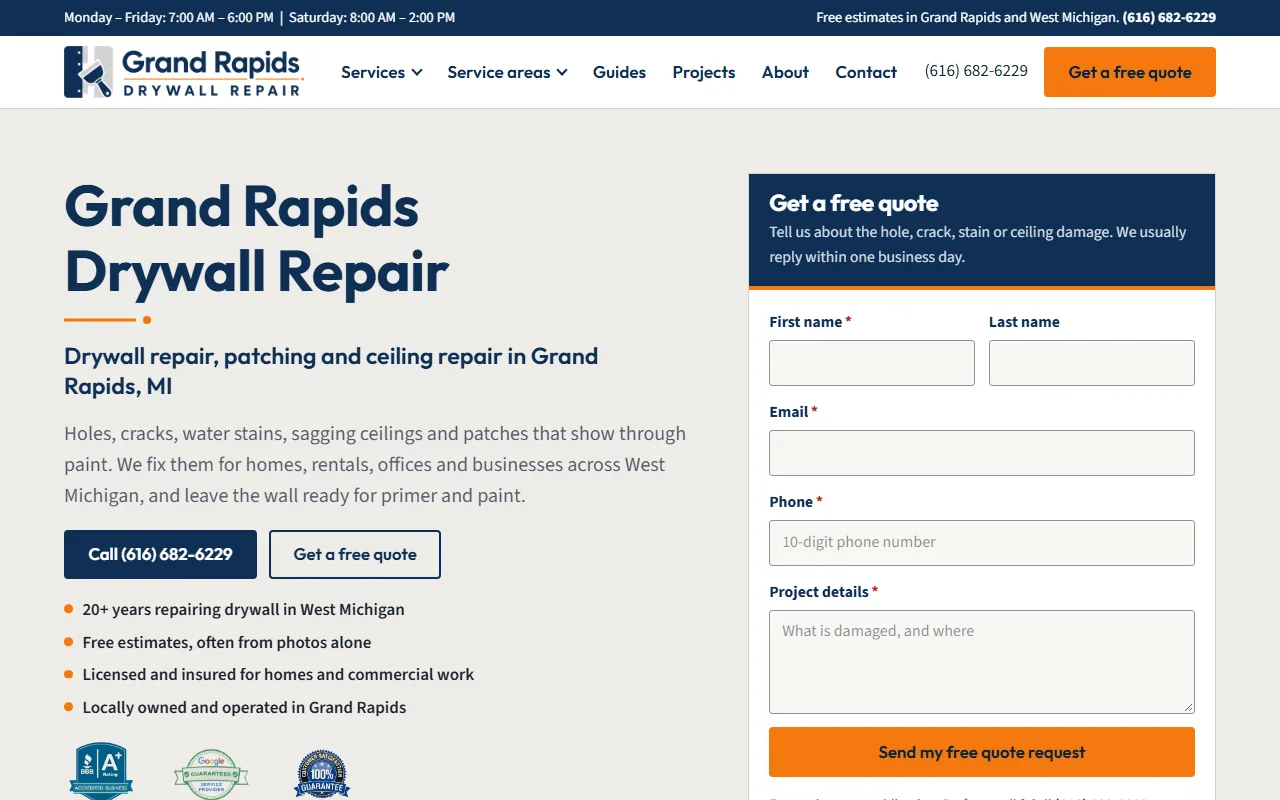
A good request a quote form asks only what you need to call someone back, sits in the first screen of every service page, and sends an alert straight to the person who returns calls. It also blocks bots without making real customers solve puzzles, and it tells you which page the lead came from. If any of those parts is missing, you pay for the visit and lose the job anyway.
This is the deep dive behind the quote-form point in our contractor website checklist, and it fits any service business. The bigger picture of how a site turns visits into calls is on our lead generation websites page.
Ask only what you need to call back
The short version
Five fields cover most service businesses:
- Name. One box. Splitting it into first and last name adds a field and gains nothing.
- Phone or email. Ask for both, but require only one. Some people won’t give a phone number to a company they haven’t talked to yet.
- ZIP code or town. It tells you right away whether the job is in your area.
- What they need. A short choice list of your services. On a service page, set it to that service already.
- Details. An optional box for anything else.
On phones, a few settings help. Put a visible label on every field, as the W3C’s form guidance asks, instead of gray hint text that disappears when someone starts typing. Use type="tel" on the phone field so phones show a number pad. Add the right autocomplete tokens (name, email, tel, postal-code) so the browser can fill them in. Keep it to one column, and skip “confirm your email” boxes.
Extras by trade
Extras earn their place only when the answer changes what you do next. Make every one optional:
- Roofing, tree work, drywall repair, concrete: a photo upload. One picture of the damage or the tree can save a site visit.
- Excavation and site work: the site address or nearest cross street, what’s on the lot now, and whether equipment can get in.
- Painting: inside or outside, and roughly how many rooms.
- Plumbing and HVAC: “Is this an emergency?” as a yes or no, so urgent calls jump the line.
- Trucking and hauling: pickup and drop-off ZIP codes, what’s being moved, and the date.
- Remodeling and larger projects: a timeline choice such as “As soon as possible”, “In the next few months” or “Just planning”.
Ask for a full street address only when you’re ready to visit. A ZIP code is enough to decide whether to call.
Photo uploads need two checks. Phone photos are large, so look up your form tool’s file size limit and allow more than one file. And use accept="image/*" on the upload field, which lets a phone offer the camera or the photo library.
If the list of extras grows long, split the form into two steps. The first step sends the lead with the short fields. The thank-you screen then offers “Add photos or details”. You get the lead even if they stop there.
Put the form where people decide
The form belongs in the first screen of each service page, next to a tap-to-call button, with that service already picked. Someone who just read about stump grinding shouldn’t have to find a contact page and explain it again.
Keep a form on the contact page too, but don’t make it the only one. Avoid three common mistakes:
- A “Get a quote” button that opens a separate page with a long form
- A pop-up that covers the page as soon as it loads
- A form at the very bottom, below every photo and review
Send the alert to whoever calls back
Decide who answers new leads, then send the alert to that person and one backup. A lead that goes only to an inbox nobody checks on Saturday is a lead lost to whoever calls first.
Email alerts
Put every field in the alert, so nobody has to log in to read it. Put the service and town in the subject line. Set the reply-to address to the customer’s email, so answering takes one click.
Check the defaults on your form tool. On Wix, form alerts go to the site owner unless you change the recipients under Automations, in the Send an email action, as Wix’s help page explains. The same page warns that some email providers treat messages as spam when the sender and recipient are the same address.
Phone alerts
For a faster heads-up, send a copy to a text service or a team chat like Discord or Slack. Don’t count on carrier email-to-text addresses. AT&T ended its email-to-text service on June 17, 2025.
Keep a saved copy of every message in the form tool’s dashboard too, so one lost email never loses a lead. We set up these alerts, by email or Discord, as part of our website automations work.
Test it with a real message
Don’t call a form done until a real message has landed. Run this test:
- On your phone, switch off Wi-Fi so you test over mobile data.
- Open a service page and fill out the form with your own name and a normal-sounding note, such as “Checking our quote form from my phone.” Spam filters, including the AI filters some form tools use, can quietly hold a message that says “test, please ignore”, so if no alert arrives, check the form tool’s spam folder before deciding the form is broken.
- Use an email address that isn’t the one receiving the alerts.
- Time how long the alert takes, and check that every person on the list got it. Look in spam folders.
- Hit reply on the alert and make sure the reply goes to the “customer”.
- Check that the alert shows which page the form was sent from.
- Check what the thank-you screen says.
Repeat the test once a month and after every change to the site. Forms break quietly.
Stop spam without punishing real people
A hidden honeypot field
A honeypot is an extra field that people never see but simple bots fill in. If it comes back filled, the message is dropped. Done well, it costs real visitors nothing:
- Hide it off-screen with CSS, not with a label that says “leave blank”.
- Add
tabindex="-1"andaria-hidden="true", so keyboard and screen reader users skip it. - Give it a name browsers won’t autofill, such as
fax_extensionrather thanemail2, and setautocomplete="off". - Show the normal thank-you screen when a bot fills it in, so the bot learns nothing.
Limits and server checks
Cap how many messages one connection can send in a few minutes. Our own form does this. Check the fields on the server too, not only in the browser: required fields present, a phone number that looks like a phone number, and a sensible length for the message box. Bots skip the browser, so browser-only checks stop people, not bots.
When something looks odd but might be real, such as a message with a link in it, flag it in the subject line rather than throwing it away. A false alarm costs a few seconds. A deleted real lead costs a job.
Skip the impossible puzzles
The W3C’s note on the inaccessibility of CAPTCHA explains that picture and audio puzzles lock out people with disabilities and work less well against bots over time. It lists honeypots and limits on repeat use among the alternatives. If you still need more, pick an invisible check that only challenges suspicious traffic.
Make the thank-you step useful
The screen after “Send” is part of the form. A good one does four things:
- Confirms it went through. “Thanks, Dana. We got your request for stump grinding.”
- Says what happens next. “We call back within one business day, from this number.” Promise only what you’ll keep.
- Gives a way to reach you now. A tap-to-call button for anything urgent.
- Offers an optional next step. Add photos, or look at recent jobs like theirs.
Don’t send people to the home page, and don’t show the confirmation as a tiny message that fades away. A separate thank-you page also makes tracking easier.
Know which page each lead came from
Add a hidden field that records the page address when the form is sent. Also save where the visitor first arrived and how they got there, such as Google, an ad or a link, and include both in the alert. Our own quote forms report the page each lead came from.
Tag the website link on your Google Business Profile with UTM parameters such as utm_source and utm_medium, so those visits show up as the profile and not as plain Google traffic.
In Google Analytics 4, enhanced measurement can record form_start and form_submit events. Before trusting them, send a test and confirm the event appears for your form. A thank-you page view marked as a key event is easier to verify. Once a month, count leads by page and by source, and put more work into the pages that bring jobs.
Want it built for you?
Most of this you can set up yourself. Start with the alert test, since a form that doesn’t deliver makes the rest pointless. If you’d rather have it built and tested for you, with forms on every service page, alerts that reach the right person and lead tracking, that’s the core of our lead generation websites. Tell us your services and who answers new leads today on our contact page.